Installing the XE88 APK on Android: steps, settings and safety checks
The XE88 Android app is an APK file, not a Play Store app. The five steps to install it, the one setting that blocks most people, and what to check first.
Key facts
- Format
- APK file, not on Google Play
- Setting needed
- Allow app installs for your browser
- Permissions seen
- Location, SMS, storage, phone status
XE88 is not on Google Play. On Android it comes as an APK, the raw installation file that the Play Store normally handles behind the scenes. Installing one yourself is easy, but Android puts a safety switch in the way, and the permission screen deserves a proper read. The old download button on this page no longer works. You can get the current XE88 Android download link through our partner, then follow these steps.
Before you download
- Get the link from a source you trust. A modified APK looks identical and can steal logins. Avoid files passed around in chat groups.
- Keep Play Protect on. It scans sideloaded apps too.
- Free up some space for the APK and the game data it downloads later.
Installing XE88 on Android
Step 1. Download the APK. Tap the Android download option and confirm with OK if your browser asks whether to keep the file.
Step 2. Open the file. When the download finishes, a bar at the bottom of the screen says the XE88 APK has downloaded. Tap OPEN.

If your phone blocks the install with "For your security, your phone is not allowed to install unknown apps from this source", tap SETTINGS.
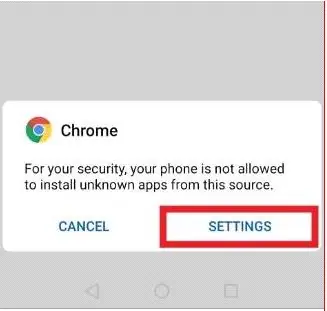
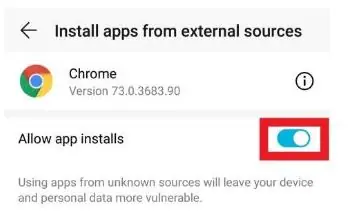
Then switch on Allow app installs for your browser, and go back.
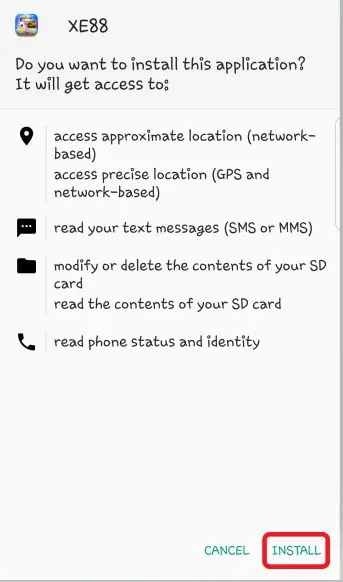
Step 3. Check the permissions, then tap INSTALL. Android lists what the app will be able to access. The build in these screenshots asked for approximate and precise location, reading your text messages, reading and changing your storage, and reading phone status and identity. Decide whether you are comfortable with that before you tap INSTALL. Newer builds may ask for different permissions.
Step 4. Open the app. When you see App installed, tap OPEN.
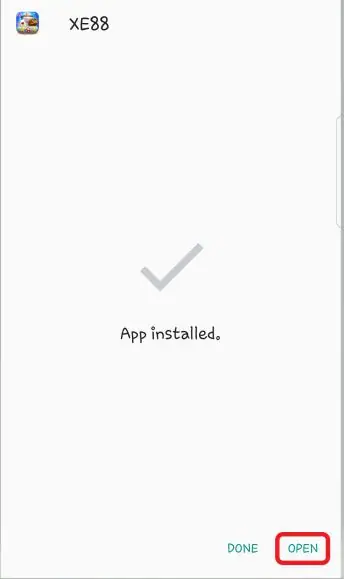
Step 5. Log in with the username and password from your account provider.
After the install
- Go back to Settings and turn Allow app installs off for your browser again.
- If the app asks for permissions later, you can say no to anything it doesn't need to run a game, and change your mind in Settings > Apps > XE88 > Permissions.
- Updates will not arrive through Google Play. When a new version is needed, download the new APK the same way.
Other devices
On an iPhone or iPad, follow the iOS guide instead. For Windows, see the PC guide. All three are listed on the XE88 downloads page. Adults 18+ only.
Quick questions
Why does Android say it can't install apps from this source?
Android blocks APKs from outside Google Play by default. Tap Settings on the warning and switch on Allow app installs for the browser you used.
Should I turn Allow app installs off again afterwards?
Yes, it is a good habit. Switch it off once XE88 is installed so other downloads can't install themselves without asking.