Installing XE88 on iPhone and iPad, including the Trust step
The XE88 iPhone app installs outside the App Store, so iOS blocks it until you trust its developer. Every step, what each screen means, and what to check first.
Key facts
- Store
- Not in the App Store
- Install type
- Enterprise app, needs Trust
- Settings path
- General > Device Management
XE88 is not in the App Store. On an iPhone or iPad it installs as an "enterprise" app, the kind companies use to hand out in-house software. iOS allows that, but it will not open the app until you tell it you trust the company that signed it. That extra step is where a lot of first-time installs get stuck. The old download button on this page is gone. You can get the current XE88 iOS download link through our partner, then follow the steps below.
Before you start
- Use Safari. Install prompts for enterprise apps work most reliably in Safari.
- Only use a link you trust. An enterprise app can do anything a normal app can. A fake copy from a random group chat is the easiest way to lose an account or your data.
- Check your storage. You need enough free space for the app plus its game data.
Installing the app
Step 1. Open the download link on your iPhone and tap the download option for iOS.
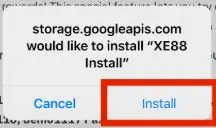
Step 2. Confirm the install. A pop-up asks whether you want to install XE88. Tap Install. The pop-up names the server the file comes from, which is normal for this kind of install.
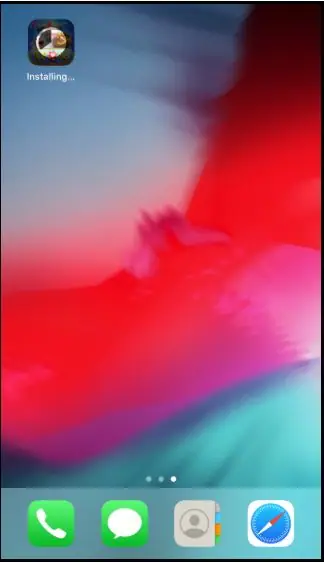
Step 3. Wait for the icon. Go to your home screen. The XE88 icon appears with a progress ring and the word Installing. Wait until it finishes.
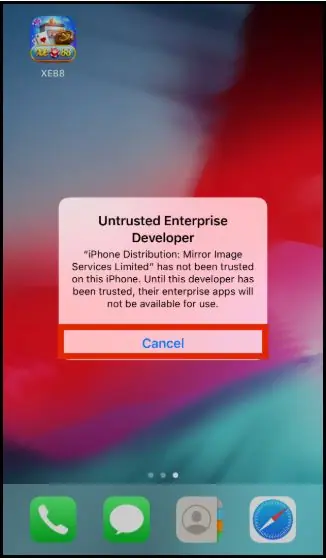
Step 4. Tap the icon, then Cancel. The first time you open it, iOS shows Untrusted Enterprise Developer. This is expected. Tap Cancel.
Trusting the developer
Step 5. Open Settings > General.
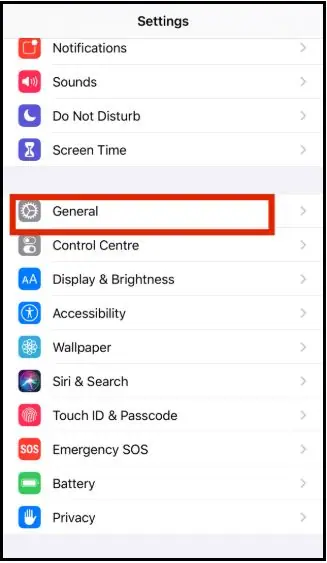
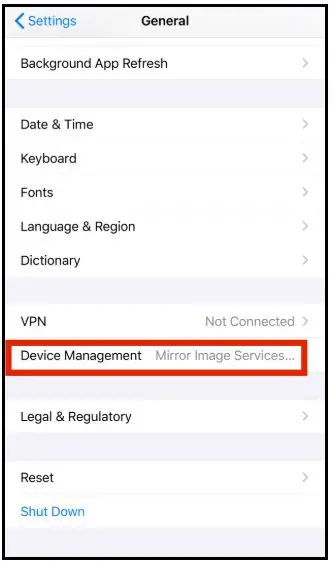
Step 6. Tap Device Management. On newer iOS versions it is called VPN & Device Management. It shows the name of the company that signed the app.
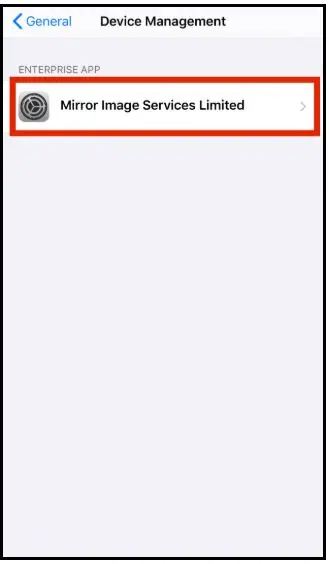
Step 7. Tap the developer name under Enterprise App.
Step 8. Tap Trust "developer name". The name you see depends on the build and may differ from older guides.
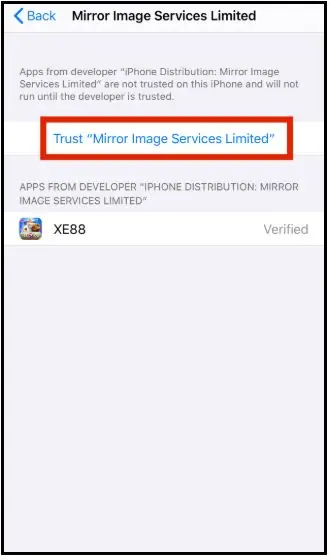
Step 9. Confirm with Trust. iOS warns that trusting lets this developer's apps run and access data. Read it, then tap Trust.
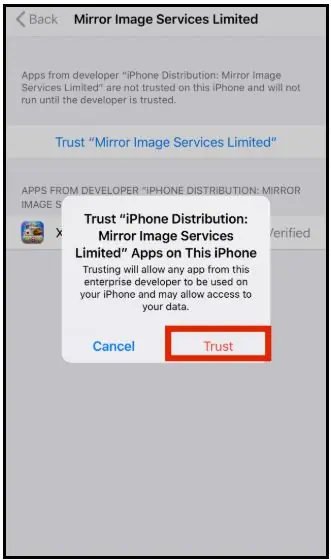
Step 10. Open XE88 and log in with the username and password from your account provider.
When it stops working
Apple can revoke the certificate behind an enterprise app. If XE88 suddenly refuses to open, delete it, get a fresh link and install again. If you want to remove the trust later, go back to Device Management and delete the app.
Using Android or a computer instead? See the Android guide or the PC guide, or go back to all XE88 download guides. Adults 18+ only.
Quick questions
Why does my iPhone say Untrusted Enterprise Developer?
Apps installed outside the App Store are signed with a company certificate. iOS won't open them until you trust that developer in Settings > General > Device Management.
The XE88 app installed yesterday but won't open today. Why?
Apple can revoke enterprise certificates. When that happens the app stops opening and you need a fresh download link with a new build.
Is the developer name always the same?
No. It depends on the certificate used for the current build, so the name you see may differ from older guides and screenshots.