Installing XE88 on a Windows PC, one setup screen at a time
The Windows version of XE88 installs like most desktop programs: a short setup wizard, a desktop shortcut and a login screen. Here is each step.
Key facts
- Installer
- Setup wizard (XE88 version 1.0 shown)
- Default folder
- C:\Program Files (x86)\XE88
- Disk space
- At least 40.3 MB (per installer)
- Options
- Desktop shortcut, launch on finish
A bigger screen is the usual reason to want XE88 on a computer. The Windows version installs through a standard setup wizard, the same kind you have clicked through for countless programs. The only unusual part is where the file comes from. The old "Download XE88 Windows" button on this page is gone. You can get the current XE88 PC download link through our partner, then follow the steps below.
Before you start
- Windows only. Our older notes covered Windows PCs. It said nothing about macOS, so Mac users should stick with the phone apps.
- Scan the file. Right-click the downloaded installer and scan it with Windows Security or your antivirus before running it.
- Expect a SmartScreen prompt. Windows may say it protected your PC. Choose More info > Run anyway only if you trust where the file came from.
Running the setup wizard
Step 1. Download the installer. Your browser shows the file in its download bar or list when it finishes.
Step 2. Open it. Click the file in the download bar to start the setup.
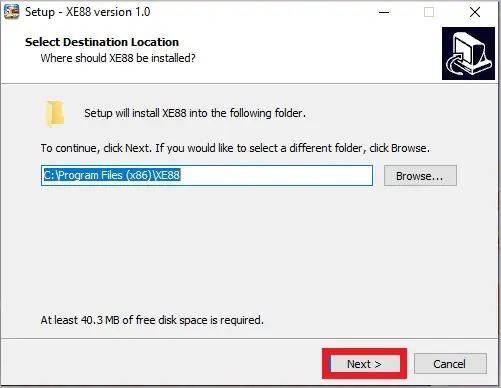
Step 3. Choose the folder, then Next. The first screen, Select Destination Location, suggests C:\Program Files (x86)\XE88 and notes that at least 40.3 MB of free disk space is needed. The default is fine for most people.
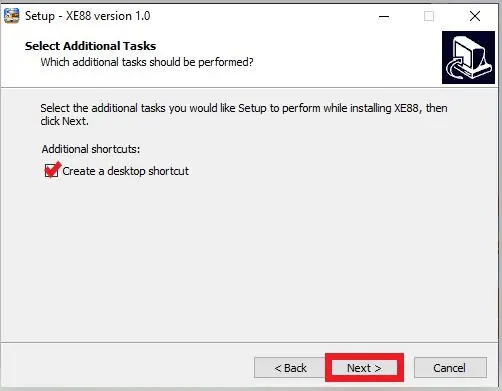
Step 4. Keep the desktop shortcut, then Next. Select Additional Tasks offers Create a desktop shortcut. The 2020 write-up recommended ticking it for convenience.
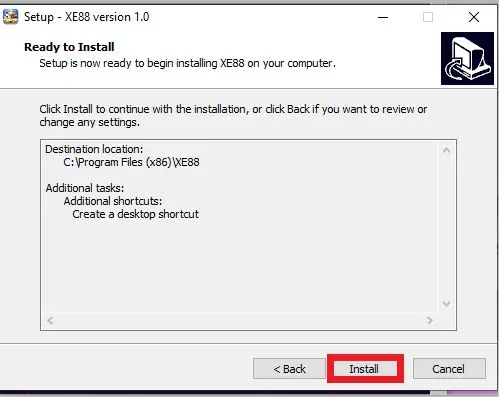
Step 5. Click Install. Ready to Install sums up the folder and the shortcut. Click Install.
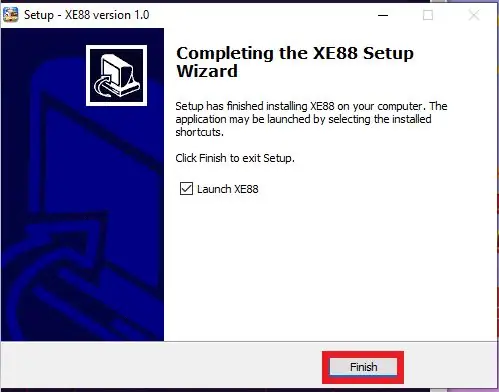
Step 6. Click Finish. Completing the XE88 Setup Wizard confirms it worked. Leave Launch XE88 ticked to open it straight away.
Step 7. Log in with the username and password from your account provider.
Updating or removing it
The screenshots show XE88 version 1.0. Newer builds may look slightly different. To update, download the new installer and run it over the old one. To remove XE88, use Settings > Apps like any other program.
Other devices
For phones, see the Android guide or the iPhone and iPad guide. All three guides are on the XE88 downloads page. Adults 18+ only, and please play within a budget you set in advance.
Quick questions
Does XE88 work on a Mac?
The old guide only covered Windows. On a Mac, use the iPhone or Android app instead.
Windows warns me about the installer. Is that normal?
Windows often warns about programs from smaller publishers. Only continue if the file came from a link you trust, and run it past your antivirus first.
